




Gmail in China: Web Version vs. Mail Clients

Gmail's web version works while a phone or desktop mail client can't connect — that's not a coincidence, the two simply don't take the same path. This guide explains why, with a step-by-step check.
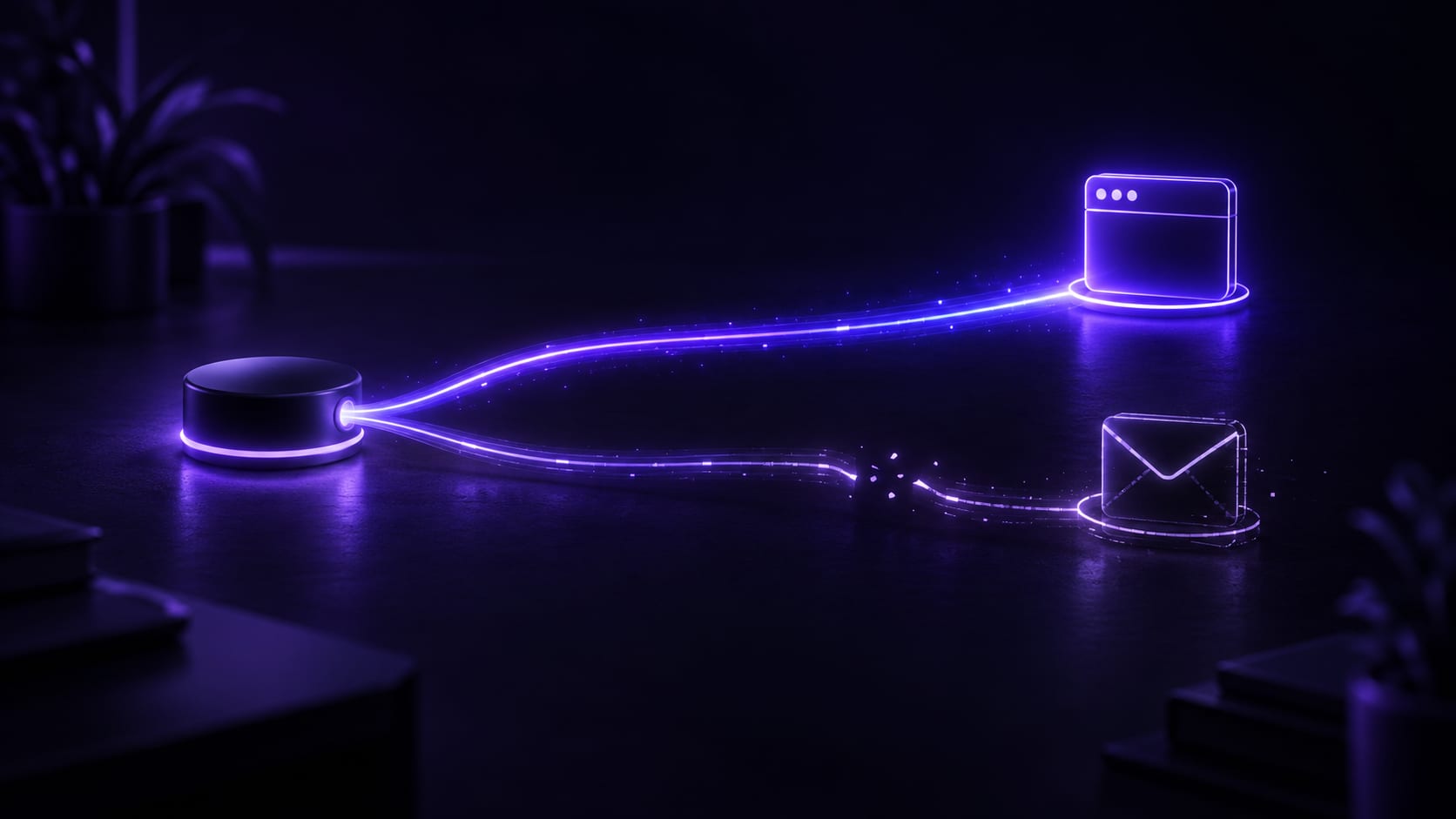


A common Gmail situation in mainland China: a network tool gets the web version open fine, while a mail client on a phone or computer still can't send or receive — or the other way around, with the web failing while the client works. That's not a coincidence; the two simply don't take the same path at all.
Here's the test: both the web and the client failing to load is the network. The web working while the client doesn't, or the reverse, comes down to the two using different connection methods — covered in the next section. Being asked for 2-step verification repeatedly after logging in is Google's own account-security judgement, unrelated to the network.
The rest of this guide first explains why the web version and mail clients behave differently, then gives a step-by-step check.
Three different reasons mail won't send or arrive
The first is that the network itself never arrives. Both the web and the client fail to load — the most basic layer, and a stable route to servers outside mainland China usually clears it.
The second is that the account needs verification. A login location that changes too quickly gets Google to require extra identity confirmation — 2-step verification or a security prompt. That's account protection, not a network fault, and everything goes back to normal once it clears.
The third is a behavior-triggered restriction. Several failed login attempts in a short time, or repeated access attempts through an untrusted method, get read as risky behavior and lead to further restricted access until extra verification clears. That has nothing to do with the network — no network tool fixes it, and it needs the verification flow completed as prompted.
Why the web version and mail clients behave differently
The web version at gmail.com uses a standard web connection — the same path, and the same ports, as ordinary browsing. As long as the network is reachable, the web version is usually fine.
A mail client is different. A phone's built-in mail app, Outlook, Apple Mail and similar clients often use protocols dedicated to sending and receiving mail, running on a completely different set of ports from web browsing. Those ports rarely get used for anything else, which is exactly why they're easy to overlook.
That's exactly where the problem shows up: if the current network setup or routing rules only guarantee the ports ordinary web browsing uses, without covering the ports a mail client depends on, you get "the web works fine, the client just can't connect" — which makes complete sense once you see it, because the two are genuinely separate paths, and one working says nothing about the other. The reverse can happen too, with rules covering the client's ports but missing the web's, though that's less common.
Global mode routes all traffic over the same path regardless of port, giving the widest coverage. Smart routing, for efficiency, automatically decides which traffic to forward and which to send direct, and a mail client's less common ports sometimes get misjudged in that process. That's exactly why switching to global mode tends to fix a mail client issue more reliably than switching nodes.
This differs from the usual reason a web page won't load. A web page failing is usually the hostname or the whole route being unreachable, and switching nodes generally fixes it. A client failing to connect often means the node itself is fine — it's just that the rules didn't cover the port it uses, so switching nodes doesn't fix it, but switching modes does. Telling the two apart saves a lot of back-and-forth.
Working through it
Step one: connect and test with global mode firstOpen FastOrange and choose global mode rather than smart routing when connecting. Ruling out incomplete port coverage first, then deciding whether to switch back to smart routing once the problem is located, is the more efficient order.
Step two: test the web version first to confirm the account and base networkLog in at gmail.com and check whether it sends and receives normally. If that goes smoothly, both the account and the base network are fine, and the problem narrows down to the client side.
Step three: test the mail client on its ownOpen the mail client on your phone or computer and check whether it connects and receives new mail. Web working while the client doesn't is close to confirmation that the client's ports specifically aren't getting through.
Step four: generate an app-specific password if the client says the password is wrongIf the login details are correct but the client keeps rejecting the password, generate an app-specific password in the account's security settings and use that instead of retrying the regular login password.
Step five: restart the client instead of waiting it out if it stays unresponsiveAfter switching nodes or a network hiccup, a client sometimes gets stuck on a connection that's no longer valid — restarting the app usually recovers faster than waiting for it to sort itself out.
Step six: switch back to smart routing afterward if you want toOnce the client is confirmed to be sending and receiving normally, switch back to smart routing if efficiency matters more day to day. If the client starts failing again later, suspect a routing rule missing its port first, and confirm by switching back to global mode.
Step seven: try both modes the first time you set up mail on a new deviceThe first time a new phone or computer adds a Gmail account, get the client configured under global mode first, and only consider switching to smart routing once it's confirmed to send and receive. Starting with smart routing on a first setup makes it hard to tell whether a problem is a configuration mistake or a missed port.
Errors people actually run into
- The web works, but the client spins forever or keeps asking to log in again. Usually the client's port isn't covered — test once in global mode.
- The client says "incorrect username or password." Most clients need an app-specific password rather than the account's login password — generate one in security settings.
- Receiving works, sending fails. The two sometimes use slightly different ports — confirm the port sending depends on is open under the current mode.
- 2-step verification keeps popping up, asking to reconfirm. An account-security judgement — verify once as prompted; it has nothing to do with the network tool.
- The client stays unresponsive for a long time after switching nodes. It may be stuck on an old connection — restarting it usually recovers faster than waiting.
- "This device isn't trusted." Confirm it once as usual, and the device is normally remembered afterward instead of prompting every time.
Habits that keep mail steady
Default to global mode for a mail client. The bit of efficiency smart routing saves is not worth repeatedly hitting the "port not covered" trap.
Stick to one usual node and avoid switching regions often in a short window. The account's security judgement is tied to how stable the login location is, and switching too often triggers unnecessary verification — and makes mail delivery less steady along with it.
Testing the web version and the client separately is a good habit beyond just troubleshooting — running through this once when setting up a new device catches incomplete port coverage early.
Don't rush to change the configuration over an occasional missed email. Confirm first whether the network itself was briefly unstable at that moment, rather than assuming the client's setup is wrong — the two point in completely different directions for troubleshooting.
FastOrange connects in one tap and reconnects automatically when a link drops, and global mode covers both the web and the client, which keeps everyday mail simpler. If a company or campus network is restricting ports itself, when a company or campus network blocks your VPN goes into more detail; for the reverse case where an app works but a browser doesn't, why an app works but the browser doesn't covers the same kind of problem from another angle.
In summary
Gmail not sending or receiving properly in mainland China usually comes down to one of three layers: the network never arrives, the account needs verification, or behavior tripped a restriction. The web version and a mail client behaving differently is a separate layer on top of that — they use different ports, and incomplete coverage produces "one side works, the other doesn't," with global mode as the most direct fix.
The network side can be made genuinely low-effort: default to global mode when connecting, stay on one node, and reconnect automatically when it drops, leaving account verification to Google's own rules. FastOrange gives every registered account free trial time daily — test both the web version and the client first, then decide whether to keep it.


 High speed
 Millions of users
 24/7 Support
Get the Fast Orange App
One App. Every Platform. A More Stable Connection.
Available for Windows, macOS, Android, and iOS. Use One Account Across All Your Devices and Start with a Free Trial.
High speedMillions of users24/7 SupportDownload Fast Orange
 Choose your platform
Download Fast Orange
Switch between Windows, Android, iOS, and macOS




