




IP Still Shows China After VPN? Do Not Assume It Failed

An IP result that does not match what you expected is usually a false alarm, not a sign the connection failed. Verify it properly with the steps below before suspecting your account or the node.



Connect, open an IP checker, and it still shows a domestic address — the first instinct is almost always "it did not work," but most of the time this is simply the wrong way to verify, and the connection itself is fine. A genuine failure does happen, it just sits fairly far down the list of causes.
A typical version of this: the instant "connected" appears, you switch straight to the browser and check, get exactly the same result as before disconnecting, decide it is broken, and go reinstall the app, switch accounts, or search for a fix. By the time it is actually sorted out, the usual discovery is that the check happened too early or through the wrong checker, and the connection was never the problem.
This article gives a proper verification sequence first, then walks through what "still shows China" can mean, most likely cause first. The rule stays the same: change one variable at a time. Do not switch the node, reinstall the app and restart the device all at once before you have even verified anything: fix something that way and you will not know which step did it.
Verify it properly, in order
Most false alarms come from a flawed verification method. Work through this sequence first, and it clears up half of them before you even get to a real cause.
- Disconnect the VPN and check your original IP once, noting the region and city as a baseline
- Connect the VPN and wait five to ten seconds for the connection to fully settle; do not check the instant it connects
- Test again on the exact same checker site; do not switch to a different one mid-way
- If it still shows no change, try an IPv4-only checker and an IPv6-only checker separately
These four steps take under a minute, and they immediately point at which layer the problem is in. If step three already shows the new address, the check was simply too early or compared against the wrong baseline, and the connection itself is fine. If nothing changes until step four, that points at IPv6 traffic that never got taken over, a different direction entirely covered further down.
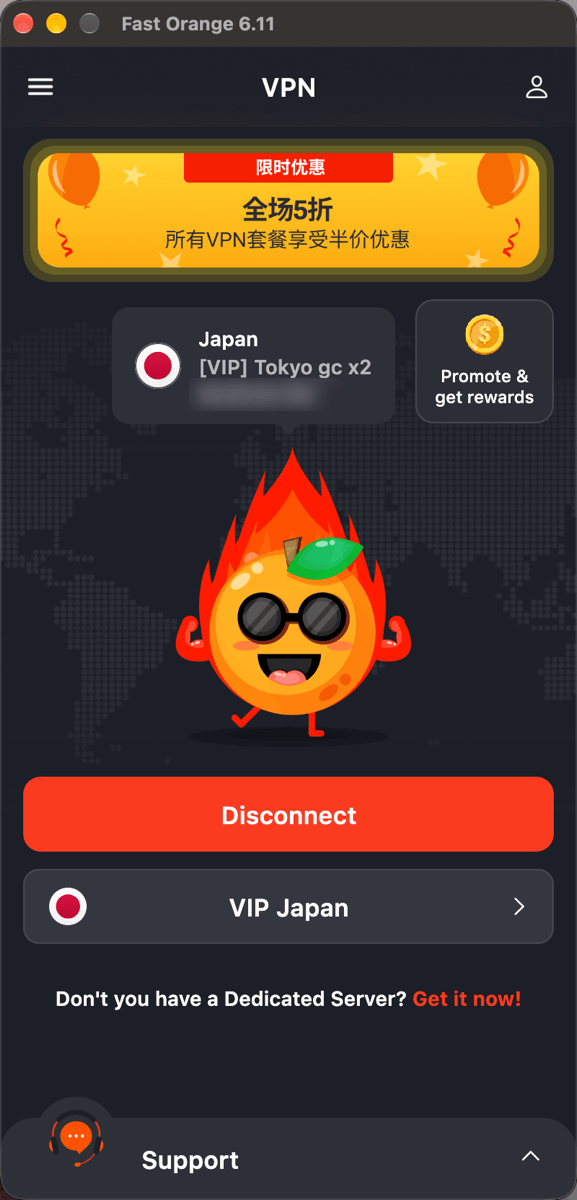
There is a shortcut worth taking before step three: the client itself usually names the address it is using. Compare that with what the checker site reports, and a mismatch says the problem is in the checking rather than in the tunnel.
The most common cause: checking too fast
How to confirm itOpening a checker site the instant "connected" appears catches many clients mid-transition — routing and DNS are still switching over right as that message shows, so what you see can still reflect the state from before the switch. Give it a second or two to fully settle and the result comes back correct. The window is short, but long enough for an impatient first check to show the wrong thing.
How to fix itWait five to ten seconds before checking, or reload the checker page instead of trusting the very first result. If the checker site itself caches results, reloading the same page may still return the old answer; opening a fresh page is more reliable.
The second cause: the checker is not seeing tunnel traffic at all
Not every "check my IP" entry point is checking the same thing. Some phone apps' built-in network-status displays, and mini-programs inside certain super-apps, run on their own internal APIs rather than going through system-level network routing, so what they show can be a completely different path from opening an independent checker site in a browser.
A concrete example: a "check your network" tool built into a social or payments super-app often reads the login region its own servers recorded, not the actual exit address of this specific connection. The two update on entirely different schedules, and the in-app display lagging by a day or two would not be unusual. Tools like this were never designed to detect a VPN in the first place, and using them as your verification standard just keeps producing misleading results.
When this happens, switch to opening an independent checker site directly in the system's own browser and retest: that is more accurate than continuing to trust an in-app display. When the two disagree, trust the browser result, not whichever app you are arguing with yourself about.
The third cause: a routing rule sent the checker site direct
How to confirm itMost clients let anything that is obviously a "domestic" site go direct instead of through the tunnel, which cuts out unnecessary detours and speeds up domestic sites. The catch is that some checker sites' servers are actually hosted domestically, or run behind a domestic CDN, and the rule list may classify one as "direct" too — so what you see really is your genuine local address rather than the tunnel's. The rule is not wrong; it just happened to treat your verification tool as something that should not go through the tunnel.
How to fix itSwitch routing to global mode and check again. If the address changes, a routing rule really was excluding this checker site from the tunnel — testing with a different checker site sidesteps it, so you do not need to stay in global mode permanently. This is the same underlying mechanism as "connected but nothing loads," and VPN connected but no internet has the fuller routing-rule sequence.
The fourth cause: it never actually connected
How to confirm itOnce the first three causes are ruled out, if repeated checks keep confirming the address genuinely has not changed, step back and suspect the connection itself. In some cases the client's interface says "connected" while the tunnel handshake never fully completed, and the displayed state simply has not caught up with reality.
How to fix itDisconnect and reconnect once, then redo the four verification steps above after it reconnects. If it still shows no change, check for a leftover proxy setting in the system — an old configuration left behind by a different tool can let a new client connect on its own layer without actually taking over traffic. "Connected" in the interface only means the client's own handshake succeeded, not that the system's traffic routing actually switched over. VPN connected but no internet covers this layer in more detail, working through DNS, routing rules, the system proxy and the node.
The IPv6 leak that is easy to miss
With the first four causes ruled out, there is one more case that slips through easily: the device has both IPv4 and IPv6 connectivity, and the VPN only took over one of them, usually IPv4. If a checker site prefers IPv6, what it sees can be the real address that never went through the tunnel, while switching to an IPv4-only checker comes back completely normal — the two results look contradictory, but they simply checked two different paths.
The telltale sign is that the same device gives different answers on different checker sites, some showing the change and some not, and the pattern is stable rather than a one-off coincidence, the same site giving the same answer every time you test it. IPv6 coverage on mobile networks has grown quickly over the last few years, and plenty of home broadband has it on by default too, which is part of why this kind of partial leak is easier to run into now than a few years ago.
This is fundamentally the same category of problem as What a DNS leak is and how to check for one: part of the traffic is taking a path outside the tunnel. Here what leaks is the IP address itself; there it is the DNS lookup, though the underlying mechanism is the same. That article covers how to confirm and fix it in more depth, so this one will not repeat it — if this looks like your cause, go work through the steps there directly.
In summary
When an IP check still shows China, suspect the verification method first: checking too fast, the wrong checker, or a routing rule sending the checker itself direct — together these cover most cases, and none of them mean the connection has a real problem. A genuine failure to connect and an IPv6 leak are the two rarer causes, worth checking later rather than jumping to first.
If you need to manually re-verify after every single connection to feel sure, that is a sign the client is not being transparent enough about its own state. With FastOrange, the connection status matches the actual routing — "connected" means traffic is genuinely going through the tunnel, with no need to keep re-checking it yourself. If you have worked through the steps above and are still unsure, sending support screenshots of both checks along with which checker site you used gets you an answer faster than continuing to guess, and makes it easier to pin down which layer the problem is actually in.


 High speed
 Millions of users
 24/7 Support
Get the Fast Orange App
One App. Every Platform. A More Stable Connection.
Available for Windows, macOS, Android, and iOS. Use One Account Across All Your Devices and Start with a Free Trial.
High speedMillions of users24/7 SupportDownload Fast Orange
 Choose your platform
Download Fast Orange
Switch between Windows, Android, iOS, and macOS




