




Mobile VPN Dropping When You Switch Wi-Fi and Data? Fix It

You walk out the door, the phone hops from Wi-Fi to mobile data, and the page you were loading just stalls. Your VPN is not broken — Wi-Fi and mobile data are two different pieces of hardware, and the tunnel has to be rebuilt from scratch. This gets that rebuild down to a few seconds, and separates it from stalls that have nothing to do with it.



Walking down the stairs and out the door, the phone hops from home Wi-Fi to mobile data, the page that was loading freezes, the video buffering wheel spins twice — this is the failure mode mobile VPN users run into most often, and strictly speaking it is not a fault. The network interface itself changed, and the tunnel has to be rebuilt.
There is no way to make this fully invisible, because Wi-Fi and mobile data are two entirely different pieces of hardware inside the phone, each with its own address. The tunnel sits on top of one specific interface; once that interface disappears, the tunnel has nothing left to sit on and has to be re-established, and that handful of seconds is what you feel as a "drop."
The good news is that handful of seconds can be compressed a long way. The bad news is it cannot be compressed to zero — if a tool claims a fully seamless handoff, it is probably dressing up "recovers fast" as "never interrupted." This piece explains what actually happens during the switch, how to shrink the recovery time as far as it goes, and which stalls have nothing to do with this handoff at all.
What actually happens the instant you switch
A phone carries two separate pieces of network hardware, Wi-Fi and mobile data, but the system generally only keeps one of them truly active. Moving from Wi-Fi to mobile data means the address on the old path disappears entirely, the new address is not assigned yet, and there is a short blank gap in between.
The tunnel happens to sit exactly on that path. Once the path is gone, the tunnel goes with it and has to shake hands again on the new interface — mechanically the same thing that happens when you first connect, just triggered more abruptly. That rebuild itself is quick, but if the client is slow to notice the interface changed, or insists on waiting for you to tap reconnect yourself, that blank gap stretches out into the stall you actually notice.
Wi-Fi to Wi-Fi within the same building (say, from your home router to the mall downstairs) is usually smoother, because both ends are at least the same class of interface and the system has practiced handling that case. Wi-Fi to mobile data swaps an entire different hardware module, and that step is inherently slower than a same-type switch — expecting it to feel as smooth as a same-type switch is not realistic, and knowing that in advance keeps a few seconds of delay from looking like the tool failing.
Put the wait in everyday terms: under normal conditions, the time from the old interface vanishing to the tunnel reconnecting is short enough that you often will not even have opened the next page before it recovers. If it is clearly taking far longer than that with nothing happening, that is when it is worth suspecting something else, rather than the handoff itself.
Getting ready for a smoother handoff
Turn on auto-reconnectCheck first that auto-reconnect is actually enabled in the client's settings. Without it, every single network change requires a manual tap to reconnect, which makes drops feel far more frequent than they really are — that is simply a switch left off, not the network being unreliable. Most mainstream tools ship this by default; whether it covers your case is worth checking under what the app does.
Pin down one node you use regularlyWhile testing how the handoff behaves, try not to change the node and the network interface at the same time. Move both at once and, if something goes wrong, you cannot tell whether the interface switch or an unstable node caused it. Keep the node fixed and let only the interface change.
Check whether battery settings are freezing itA phone's power-saving policy can freeze or outright kill an app that has sat in the background a while, rather than letting it hold its connection open. Coming back to what looks like a "drop" is often not a network problem at all — the app was ended by the system and needs reopening, not reconnecting.
If you have a split-tunneling rule, check it survivedIf you have set up a direct-connection rule for certain apps, an interface change will not necessarily break it, but it is worth a quick check regardless. How to use split tunneling covers how to confirm a rule like that is still active.
The order of operations when you actually switch
Step one: glance at the current state before you switchConfirm you are actually connected right now (a green icon) so that if something looks wrong after the switch, you can tell whether the switch caused it or it was already off before.
Step two: after landing on the new network, give it a few secondsLet the client notice the interface changed and rebuild the tunnel before you open a large file or a video. Acting too fast just shows you a failure that would have cleared itself within a few seconds anyway.
Step three: reconnect manually if it clearly has not recoveredWaiting does not have to be open-ended. Once it is clearly well past the normal range with no recovery, disconnecting and reconnecting by hand beats continuing to wait, and it is less stressful too.
Step four: confirm the new connection landed on the same nodeAfter reconnecting, check the current node against the one from before the switch. If it silently switched to a different region, apps that expect a consistent login environment may treat that as a fresh session and throw an extra verification prompt.
A few common traps
- A large download, or a voice or video call, happens to be running right at the switch, and the progress resets or the call drops afterward — the tunnel genuinely rebuilt itself, the download or call was not at fault
- Wi-Fi was never turned off and mobile data is also on, so the system keeps hopping between the two and the client keeps reconnecting, which feels messier than a single clean drop
- The app was killed outright by the system rather than frozen; the connection itself is fine on return, but the app still needs a fresh launch
- Auto-reconnect is on, but the node is set to "auto-best," so every reconnect lands in a different region and account-bound apps read that as a constantly shifting login environment
- A long stretch with no signal at all (an elevator, an underground garage) leaves you waiting on a reconnect that cannot start until the phone itself finds signal again
- A manual switch between carrier generations (say, dropping from 4G to 3G) leaves the interface itself unchanged, but the underlying link quality shifts enough to look just like a real interface switch
When this is not something any tool can fix
Some environments cause frequent handoffs or signal loss on their own, regardless of which mobile VPN is running: subways and elevators with weak coverage, a moving vehicle constantly changing cell towers, or a carrier simply having poor coverage in a given area.
The test is simple: turn everything off and check whether the phone's raw connection is just as choppy on its own. If it is, the cause is signal coverage, not any client's reconnect logic, and switching tools will not help. If the drops only happen while the mobile VPN is active, that is when the client's own settings are worth a look.
Public transit, elevators and underground garages are worth remembering specifically, since they come up often enough. Once you have confirmed the cause is signal a single time, the next time you hit the same spot you do not need to re-diagnose it — just wait for signal to return. For a more systematic way to work through drops in general, what to do when a VPN keeps disconnecting covers that on its own.
In summary
Switching between Wi-Fi and mobile data cannot reach zero delay, because the two interfaces are genuinely different hardware and the tunnel has to be rebuilt — that does not change no matter whose client you run. What you can do is shrink the process: turn on auto-reconnect, keep the node fixed while testing, check whether battery settings are freezing the app, and give it a few seconds after switching before deciding something is actually broken.
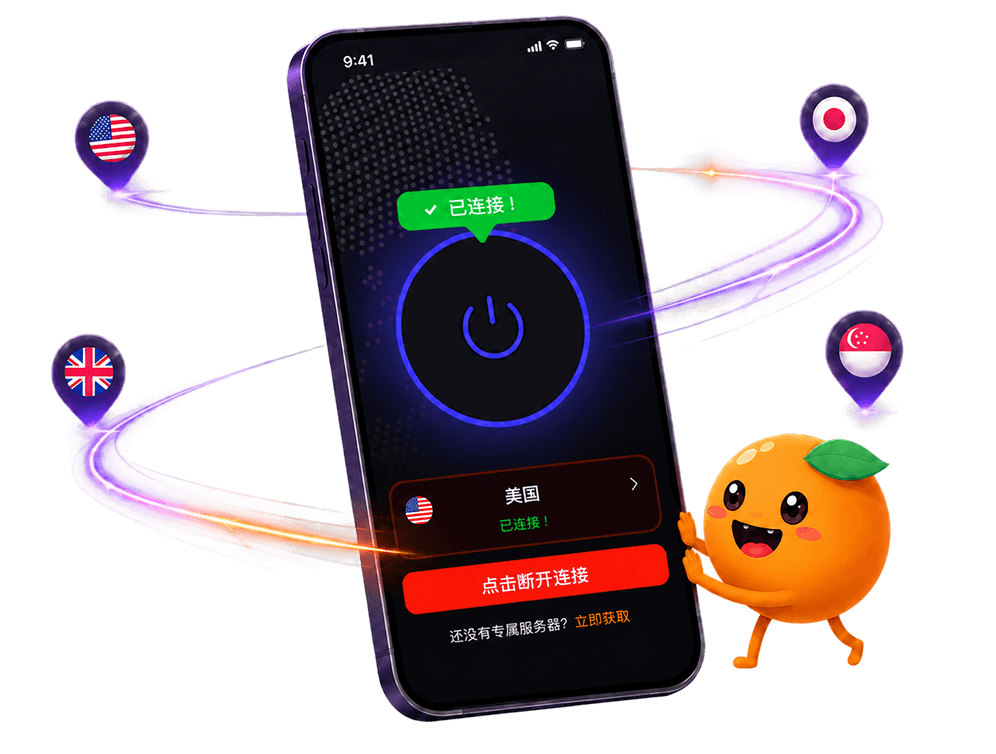
If you find mobile data works while Wi-Fi does not (or the other way round), that is usually a different layer of the problem rather than the handoff itself, and mobile data works but Wi-Fi does not covers that case specifically. To spend less time on this day to day, FastOrange reconnects automatically and switches node in one tap by default — every registered account gets free trial time daily, so test it on the route you switch most often first.

 High speed
 Millions of users
 24/7 Support

Get the Fast Orange App
One App. Every Platform. A More Stable Connection.
Available for Windows, macOS, Android, and iOS. Use One Account Across All Your Devices and Start with a Free Trial.
High speedMillions of users24/7 SupportDownload Fast Orange
 Choose your platform
Download Fast Orange
Switch between Windows, Android, iOS, and macOS