




How to Set Up a VPN on Android: Download to Connected

Setting up a VPN on Android rarely trips on picking a node. It trips on where the installer comes from and the system's connection request. This guide covers download, steps, verification and common errors in order.


Setting up a VPN on Android comes down to three steps: download the installer, register and log in, allow the system's connection request when it appears, then pick a node and connect. The part that actually stalls people is almost always the first step. Plenty of Android phones do not list this category of app in their built-in app store, which means going to the official site for the installer instead.
The biggest difference from iPhone is at the permission layer. iOS asks for one system-level confirmation, once. Android can trigger a "connection request" every time a new app tries this, and different manufacturers police background apps with very different levels of aggression. Whether it stays connected reliably afterward is half a system-settings question, not just an app question.
This guide goes in order: download, steps, verification, then common errors. That is enough to install it and confirm it is actually connected afterward.
The biggest difference between Android and iPhone
iOS asks for one system-level confirmation, once. Android can trigger a "connection request" every time a new app attempts this, and different manufacturers police background apps very differently, so whether the connection survives afterward depends as much on system settings as on the app itself.
This shows up more on domestically customized Android builds. Their battery-saving policies often treat a long-running background connection as something safe to clean up, so a connection that came up fine gets quietly cut by the system a while later, which has nothing to do with the network or the app.
Two things to check before downloading
What to do when the app store search comes up emptyIf the phone's built-in app store cannot find it, go straight to the official site and download the installer. That is the most common and most direct route on Android, with no extra tools involved.
Confirming the installer actually came from the official siteCheck that the download link is the official domain before installing. Fake official sites and counterfeit installers are a common trap on Android; how to spot a fake VPN app covers how to tell them apart.
Whether a similar accelerator app is still installedIf another accelerator or proxy tool was used before, check whether it is still running in the background. Two apps both trying to hold a VPN connection tend to conflict with each other, so uninstalling or force-stopping the old one before installing the new one avoids a lot of confusing failures later.
Setup steps
Step one: download the installer from the official siteOpen the FastOrange official site and download the Android installer. The system usually flags where the file came from after downloading; confirm it is the file just downloaded before continuing.
Step two: allow installation from an unknown sourceThe first time an app from outside the app store is installed, the system shows a one-time confirmation asking whether to allow installs from this source. Agreeing lets installation continue; this prompt only appears the first time.
Step three: register and log inOpen the app and complete registration with an email or a third-party account. This step has nothing to do with network status; it is purely an account action and can be done before ever connecting.
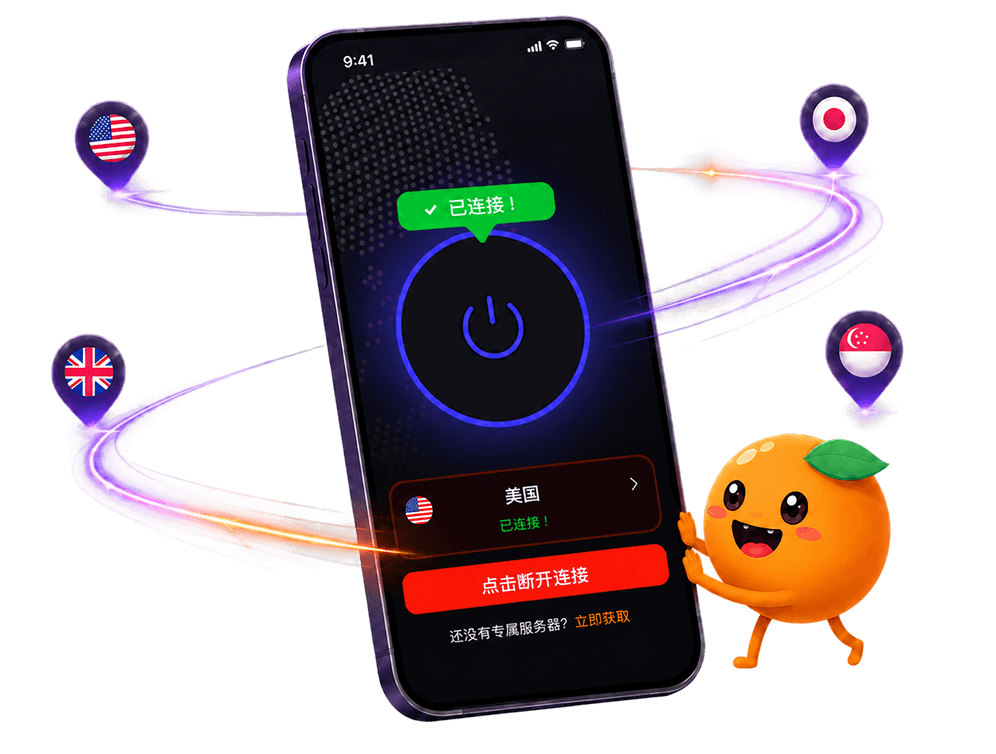
Step four: agree to the system's connection requestTapping connect triggers a system prompt stating that this app wants to establish a VPN connection and is requesting system-level permission. Agreeing switches the icon to connected; declining leaves the app stuck on connecting.
Step five: pick a node and verifyChoose a node, wait for the icon to switch to connected, then open an overseas page and confirm it loads normally. The status text inside the app alone is not enough proof; the page actually loading is what counts.
Common errors
- The installer won't install; it says installation was blocked. Usually the system's security policy blocking an unknown source. Check whether installs from this source were actually allowed.
- It disconnects on its own a while after connecting. Plenty of domestic Android builds have aggressive background battery-saving policies; adding the app to a trusted or unrestricted background list usually reduces this.
- The system's connection request never appears. Possibly declined once before with "don't ask again" selected. Find this app's permission record in system settings, clear it, and reconnect to trigger the prompt again.
- It connects, but nothing changes inside a specific app. Some apps run their own region logic separate from whether the network itself is connected; connected but no internet covers how to tell the two apart.
- A reboot means tapping connect again. Most clients do not auto-reconnect after a restart. That is normal behavior, not a lost setting; just connect manually once.
What that "always allow" checkbox on the connection request actually does
The connection request Android shows, wording like "FastOrange wants to set up a VPN connection to monitor network traffic," is Android's fixed template for every VPN-type app, not a warning aimed at any one app specifically, so language about monitoring network traffic is not a reason for concern.
The prompt usually carries an "Always allow connections from this app" checkbox. Check it, and the same app will not trigger the prompt again on future connections. Leave it unchecked, and some Android versions ask again every time a new connection starts; that is not a fault, just an unchecked box.
One more thing that is easy to miss: Android only allows one VPN connection active at a time, system-wide. If another accelerator or proxy tool is still installed, reopening that app and letting it try to connect will silently take over from FastOrange's active connection, even without showing a prompt at that moment. That is why it is worth confirming an old app is fully closed, not just off-screen, before installing a new one.
Before assuming it keeps dropping, check these switches first
A connection that disconnects on its own after a while is usually not a network problem. Working through the list below finds the cause faster than switching nodes.
- Battery settings for the app: switch it from "optimized" or "restricted" to "unrestricted"
- A separate auto-start permission, off by default on plenty of domestically customized systems and easy to miss
- Any built-in "one-tap cleanup" or junk-cleaning tool that might sweep background apps along with actual clutter
- Whether swiping FastOrange away in the recent-apps screen has become a habit rather than an intentional close
If disconnects keep happening after checking all of these, contacting support is the next step, and mentioning the phone's brand and system version helps, since these switches go by different names across manufacturers.
What holds true across Android brands
Whichever Android brand it is, the core flow is the same three checkpoints: download, confirming an install from outside the app store, and the system's connection request. The wording on screen varies; what needs doing does not.
How aggressively a manufacturer's custom skin manages background apps is the thing actually worth watching on Android, one layer beyond what iPhone deals with. After installing, it is worth using it normally for a day and seeing whether the system cuts the connection on its own before deciding whether background settings need adjusting.
Switching between Wi-Fi and mobile data sometimes causes a brief disconnect followed by an automatic recovery. That is the system renegotiating the network, not a fault. Switching between Wi-Fi and mobile data without dropping the connection covers how to reduce this if it happens often.
When moving to a new phone, remember to log out on the old one first. The same logic applies on Android as on iPhone: skip that, and the old device keeps holding a simultaneous-connection slot.
In summary
Setting up a VPN on Android usually trips on the installer's source and the system's connection request, not on picking a node, which is the easy part. Opening an overseas page afterward to confirm it works is more reliable than trusting the text inside the app alone.
FastOrange uses the same one-tap connection logic on Android as everywhere else, with nothing to configure by hand. Every registered account gets free trial time daily, so follow the steps above, test it, then decide.

 High speed
 Millions of users
 24/7 Support

Get the Fast Orange App
One App. Every Platform. A More Stable Connection.
Available for Windows, macOS, Android, and iOS. Use One Account Across All Your Devices and Start with a Free Trial.
High speedMillions of users24/7 SupportDownload Fast Orange
 Choose your platform
Download Fast Orange
Switch between Windows, Android, iOS, and macOS