




Mobile VPN vs. Desktop VPN: Where the Setup Differs

Using a VPN on mobile and on desktop looks about the same: open it, connect, get online. The two systems handle the connection itself differently, and this explains where, plus what to watch for running both together.


Plenty of people assume a mobile VPN and a desktop VPN are the same thing installed on two devices, and day to day the usage does look the same: open it, connect, get online. But the two systems handle the connection itself in different ways underneath, which is exactly why the same account can feel rock-solid on your phone and need reconnecting constantly on your computer — or the other way around.
This piece first explains where mobile and desktop actually differ mechanically, then walks through three differences you'll actually run into day to day, and finishes with what to watch for when running both at once. If you just want to know where to start, treat this as a reference table and jump back to the relevant section whenever a specific issue comes up.
What's actually happening on mobile
On mobile, the operating system manages the connection centrally — the app itself mostly just shows the "connect" button, while the actual work of establishing and holding the connection happens at the system level. The upside is battery efficiency and an easier time holding the connection while switching between Wi-Fi and cellular data. The tradeoff is that mobile operating systems restrict background apps much more tightly, and a VPN app is no exception — once the system "reclaims" it, the connection sometimes needs to be re-established.
There's another wrinkle specific to mobile: a phone usually isn't plugged in all the time, so the system actively throttles apps it doesn't think are being used right now, VPN apps included. That's the real reason behind complaints like "it just drops in the background eventually" — more often than not, it's the system saving power on your behalf, not the VPN itself failing.
On top of that, switching apps, locking the screen, or moving over to handle something else can all get read by the system as "this app doesn't need to run at full tilt right now," which briefly suspends the connection and re-establishes it once you switch back. That handshake usually takes a second or two and feels like a brief stutter — it's the system doing normal resource scheduling, not a route problem.
What's actually happening on desktop
A desktop VPN is usually a standalone client program that isn't nearly as exposed to background restrictions: as long as the computer isn't asleep and the program hasn't been closed manually, the connection just stays up. That's also why a desktop VPN suits situations that need to stay online for a long stretch — leaving a download running, or sitting in an all-day voice call.
Desktop VPNs also tend to expose more configuration: letting specific apps skip the VPN route entirely (split tunneling), or launching and connecting automatically at startup. None of that makes a desktop VPN "more advanced" — it's simply that a desktop operating system gives software more latitude to begin with. Mobile operating systems, for security and battery reasons, generally don't open up the same level of control.
Running several things at once on a computer is also far more common: downloading a file while sitting in a video call while a browser has a dozen tabs open. A desktop VPN needs to hold up reliably under that kind of layered multitasking, which is why desktop weighs "stays connected indefinitely" more heavily than mobile does — mobile weighs "wakes up fast, saves power" instead.
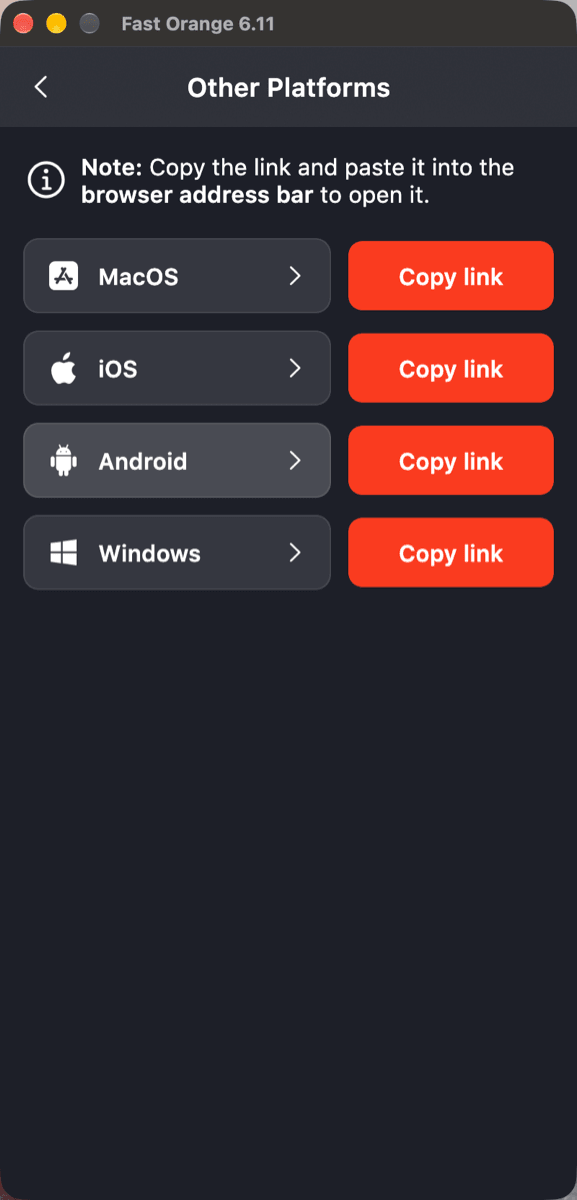
Which client gets installed is a step of its own: Fast Orange VPN keeps one download entry per platform, and the macOS, iOS, Android and Windows builds are separate installers rather than one file that adapts.
Three differences you'll actually run into
Day to day, mobile and desktop mainly differ in these three ways:
| Situation | Mobile | Desktop |
|---|---|---|
| Switching between Wi-Fi and cellular | Handled by the system, usually seamless | Rarely comes up — generally stays on one network |
| Staying connected in the background for a long time | Can be interrupted by the system's battery policy | Stays connected indefinitely as long as it isn't asleep |
| Fine-grained configuration (e.g. split tunneling) | More restricted, usually fewer options | Usually more options, more flexible setup |
| Auto-connect at startup | Generally attempts to reconnect after unlock | Can be set to connect right at boot, no tap needed |
None of these differences make one platform "better" — the two systems were designed around different priorities: mobile prioritizes battery life and simplicity, desktop prioritizes staying connected and configurability, because the two are built for different use cases to begin with. Once that clicks, "why does the same account behave differently on each end" stops being a mystery, and your first instinct won't be to suspect the account itself.
What to watch for running both together
Your phone and computer connecting to different nodes doesn't cause any conflict. As covered in how many devices one account can cover, signing in on multiple devices at once under one subscription is completely normal use — there's no need to worry about them "fighting" over the connection, and you don't have to disconnect one side before the other can connect.
The same logic applies if more than one person in a household shares a subscription: each device signs in and connects independently, and whoever is on a video call and whoever is in a voice call don't compete for bandwidth or a node slot just because they share a subscription — the account counts devices independently, it doesn't fight over a single shared connection.
Worth remembering: there's no need to force both sides onto the same node — just let each one stay on whatever's steady. If your phone is mostly for video, pick a node that's less latency-sensitive with good signal; if your computer handles work that needs low latency, pick a separate node suited to that instead — the two don't affect each other, and there's no need to keep switching to keep them matched.
Switching devices, or running an old phone and a new one side by side during a transition, is nothing to worry about either — multiple devices online at once is something the subscription itself supports, not a workaround. The only thing actually worth checking is whether your device count is still within what the subscription covers; only go over that and an upgrade becomes worth considering.
A few habits worth not overlooking
The issue mobile runs into more often is battery and data: does a VPN use more battery and data covers that specifically, along with switching between Wi-Fi and cellular without dropping.
The feature desktop uses more often is split tunneling: how split tunneling works explains how to route local apps directly while everything else goes through the VPN. That option is usually unavailable, or limited, on mobile — one of the clearer advantages of the desktop side.
One more small habit worth knowing: after a computer sits unused for a while, the VPN client sometimes stays in whatever state it was in when you last closed it. Checking the connection status before your first request, rather than after a page fails to load, saves time. Mobile runs into this less often since auto-connect is usually on by default there.
In summary
Mobile and desktop VPNs run on the same account and the same underlying technology; the differences come from what each system was designed to prioritize — battery life on mobile, staying connected and configurable on desktop. Once that's clear, most "why does this work fine on my phone but not my computer" questions already have an answer, without needing to suspect the account or the route.
In other words, when the two sides behave differently, consider first whether it's just a normal system-level difference before deciding whether to reach out to support — most of the time the answer is already one of the points covered here, with no configuration change needed.
FastOrange connects in one tap on iOS, Android, Windows and macOS, and the same subscription can be signed in on a phone and a computer at once, each picking its own node and reconnecting automatically without manual reconfiguration. Every registered account gets free trial time each day, so both ends can be tested before deciding whether to keep it.


 High speed
 Millions of users
 24/7 Support
Get the Fast Orange App
One App. Every Platform. A More Stable Connection.
Available for Windows, macOS, Android, and iOS. Use One Account Across All Your Devices and Start with a Free Trial.
High speedMillions of users24/7 SupportDownload Fast Orange
 Choose your platform
Download Fast Orange
Switch between Windows, Android, iOS, and macOS




